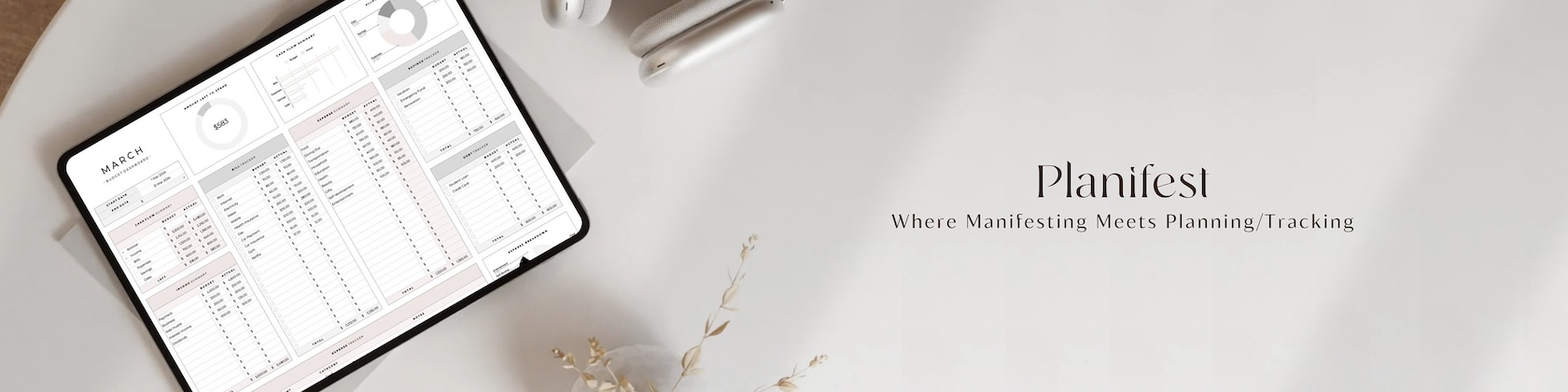

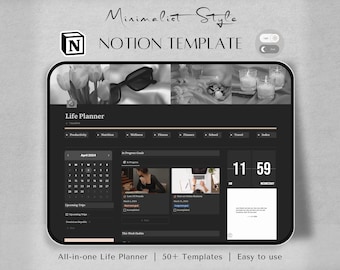
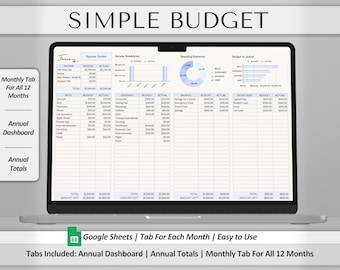





Our story began from a fervent passion for organization and creativity.
Featured items
All items
Announcement
Last updated on Nov 7, 2024
Reviews
4.7
(973)
Average item review
We calculate this number using a recency-weighted average of all ratings, with a rating's value decreasing by half each year to best reflect the current experience.
Loading
About PIanifest
Sales
15,565
On Etsy since 2023
-
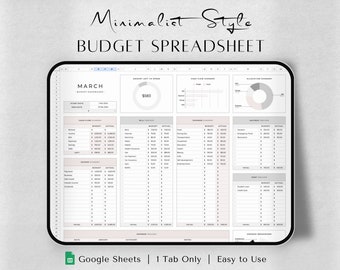
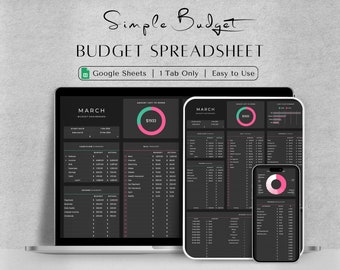
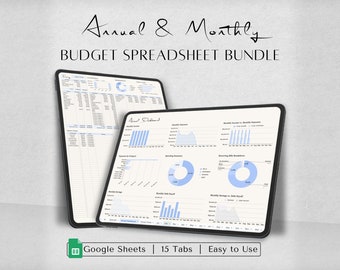
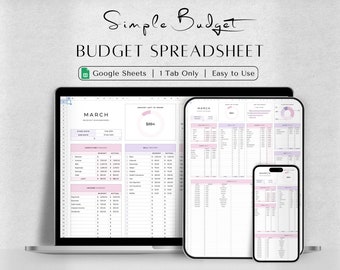
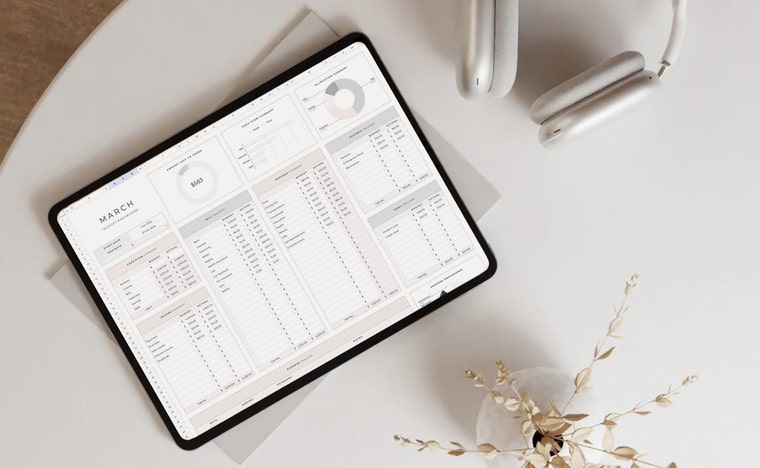 Our goal is to design visually appealing and productive spreadsheets that effortlessly track and manage all aspects.
Shop members
-

Justin
Owner
Shop policies
Last updated on
Accepted payment methods
Accepts Etsy Gift Cards and Etsy Credits
Returns & exchanges
See item details for return and exchange eligibility.
More information
Last updated on
Dec 17, 2025
Frequently asked questions
How to make your Spreadsheet Available Offline
Google Sheets now allows you to edit and access your spreadsheet offline. To do so, go to File in the top left corner, then select Make available offline.
Custom and personalized orders
While I recommend initially opening the spreadsheet on your computer or laptop, there are no restrictions on which devices you can use to edit it. If you'd like to access your spreadsheet on your tablet or phone, I highly recommend downloading the Google Sheets app.
Custom and personalized orders
To access the spreadsheet with multiple Google Accounts, click the Share button at the top right. Then, in the bar that says "add people or groups," add the Gmail address of the person you would like to share the spreadsheet with. Next, on the right, select the access type: viewer, commenter, or editor. Finally, click Done.
Custom and personalized orders
Typically, this error message appears when there is not enough storage available in your Google Drive. First, I would recommend checking your storage capacity and cleaning it up if it's nearly full. Then, try opening the link again.
Custom and personalized orders
This spreadsheet is protected to prevent accidental editing of cells containing formulas. However, there are exceptions for cells designated for your editing. To remove the sheet protection, navigate to Data > Protected sheets and ranges. Select the tab, and on the right, locate the Trash icon. You should see a Trash icon. However, altering or removing formulas in the spreadsheet will change how it functions.
Looking for more? Find it on Etsy