























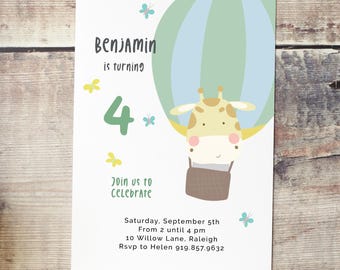


Announcement
Last updated on Sep 29, 2025
Reviews
5.0
(295)
Average item review
We calculate this number using a recency-weighted average of all ratings, with a rating's value decreasing by half each year to best reflect the current experience.
Loading
-

Etsy buyer on Apr 13, 2026
5 out of 5 starsGreat selection and very helpful. Will be using this store again!
-
Etsy buyer on Apr 26, 2025
5 out of 5 starsAbsolutely perfect!! Exactly what I needed! And download worked perfectly!

Anja responded on May 5, 2025
Thank you so much for your kind words 💖!
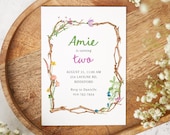



About AspenInvite
Sales
3,509
On Etsy since 2016


Shop members
-

Aspen Invite
Owner
Hi! My name is Anja and I am the designer of Aspen Invite in Norway.
Shop policies
Last updated on Feb 6, 2025
Digital downloads
Instant downloads
Your files will be available to download once payment is confirmed. Here's how.
Payment options
Secure options
Accepts Etsy Gift Cards and Etsy Credits
Etsy keeps your payment information secure. Etsy shops never receive your credit card information.
Returns & exchanges
See item details for return and exchange eligibility.
Cancellations
Cancellations: accepted
Request a cancellation: within 2 days of purchase
Privacy policy
More information
Last updated on
Mar 4, 2025
Frequently asked questions
HOW CAN I ACCESS MY TEMPLATE?
Corjl will send you an email with a link so you can log in and access your item. You can also access your item by visiting corjl.com and entering your order details.
Instructions are included with the purchase. Corjl also offers video tutorials online.
If you have any problems, try these tips:
1. It is recommended that you use the Chrome browser.
2. It is recommended using a desktop or laptop computer.
3. The order did not load correctly, or there was a server error: Try refreshing the page or logging out and back in to try again.
If you are still experiencing problems, please contact my shop.
HOW TO DOWNLOAD AND EDIT PDF FILES?
Go to www.etsy.com/your/purchases and select "Download Files."
Etsy will also send you an email with a link to your files.
An instruction guide is included in your purchase.
For information on what can be changed in each item, see the item description.
Use a PDF reader, such as Adobe Reader, to edit.
The editing options are limited, so it is recommended to keep the font already in the design. Click CTRL E to change the font size depending on the length of the names you want to fit.
CORJL BASIC START GUIDE
1. Click on 'Layers' in the lower right corner.
2. Choose the layer that needs editing. Edit your text in the textbox above the layers.
Tips: Use the leading and tracking options to adjust the spacing in your text.
3. Choose fonts from the fonts menu and change the color from the color box.
4. To change the font size, drag the text box corners in the template or choose a point size from the drop-down menu.
Bonus: You can create multiple items with different text; just choose 'Duplicate Page' above the template.
HOW TO PLACE MY PHOTO?
Click on the sample photo in the template, then choose 'Replace Image' from the tools panel on the right.
If necessary, crop your photo before uploading. Make sure to upload one of your photos with the same orientation as the sample photo for the best result. Drag one of the gray corners to fit your photo into the frame.